
Introduction
Are you even a mobile or frontend developer if you’ve never had an app idea, only to realize, that it needs a backend to make sense after a bit of development? As a naive junior, I used to think I could learn backend in my free time. Maybe I still think that a little. Of course, most of the time, that’s not the case. 😉
Some of my ideas included a shared shopping list, a simple but encrypted exchange of messages or images where the decryption key is shared verbally and not over the internet, word games or letter-based games where every day all users would get a new word…
Sometimes, I might want feedback from users to know what they clicked or chose. Recently my company asked me to write a blog post, and I knew that this is an opportunity to try something new.
After some thought, I decided to explore Vapor, a framework for building backends using Swift.
Technical Prerequisites
- Basic Swift knowledge.
- Familiarity with backend concepts.
- macOS environment with Xcode installed.
- Comfort using the terminal/command line.
Traditional approach
Most of the time, the first solution that comes to mind for quick backend is Firebase, but through conversations with seasoned backend developers, you realize that it might not be the best fit. While it offers quick solutions, it often locks you into their ecosystem, which can be limiting in the long run. Additionally, as the project grows, costs can escalate. Firebase is faster for simple data storage and retrieval, as it uses a NoSQL database that allows for flexible data structuring in the form of documents.
However, traditional SQL backends provide greater flexibility and control, especially in complex systems where it’s important to maintain relationships between different entities and ensure data integrity. I prefer solutions that give me more control over the backend and scalability. Another drawback is that it is not possible to transfer it to your server.
Prepare the tools
Alright, let’s get started. Let’s explore what needs to be installed, and what each component is used for. Some of these tools aren’t strictly mandatory, but they’re essential if we want a complete overview.
Xcode
I’d say that both this article and building a backend in Swift might be overkill for beginners or those without experience in the Swift world, so I’ll assume you already have Xcode installed and know what it is.
Homebrew
Homebrew is the simplest way to access open-source resources on your Mac. Normally, you’d need to manually download and install each library, along with any dependencies they require, one by one – a tedious and time-consuming process. Now imagine if one component in this chain needs updating. Homebrew is specifically designed for these tasks, automatically downloading necessary projects and keeping them up to date with a single command. This is why it’s an invaluable tool for developers.
Installing Homebrew is very straightforward; you just need to enter a single line in the terminal, which can be found directly on their website at brew.sh.
Vapor
Vapor is a web framework for Swift, allowing you to write backends, web apps APIs and HTTP servers in Swift. Vapor is written in Swift, which is a modern, powerful and safe language providing a number of benefits over the more traditional server languages.
To install Vapor, we only need a single line in the terminal.
brew install vapor
Postman
I’m guessing most of you are already using this tool, but for anyone unfamiliar, Postman is used to test API calls and view responses. It lets us quickly check if an API route is working as intended. However, it’s not strictly necessary for functionality; we can verify everything without it if needed. We can also verify everything within the iOS app itself.
Azure Data Studio
In short, we’ll use this tool for direct access to view and manage the database. It’s useful for checking if data was correctly written in the database and seeing everything it contains. Technically, we could do without it, but in practice, it would be nearly impossible. Of course, there are alternatives to this tool, one of the most popular being DBeaver.
PostegreSQL extension
When we create a Vapor project, we’ll select the type of database to use. To view it within Azure Data Studio, we’ll also need to install an additional extension called PostgreSQL.
Docker Desktop
Docker is a platform for building and running applications in a container that is (mostly) isolated from the rest of the system and has everything it needs to run self-contained.
From a very high-level perspective, it looks like each application is running in its own virtual machine. (From a technical perspective, this is wrong, but it’s just to give you a basic understanding of the concept). You can have many different applications running in their own docker containers on the same machine and not conflicting with each other.
The main use case in web development is to deploy your application on any server without having to worry about installing any other dependencies or conflicts with other applications on the same server. You can also use docker to run your application locally for development in the same way it would run on the server. Through conversations with developers, I’ve heard that Docker is widely used in real projects, making it an interesting tool to learn.
Ever had a great iOS app idea and then realized it needs a backend? In this step‑by‑step guide, you’ll build a backend with Swift and Vapor using Docker, PostgreSQL, and Azure Data Studio, all the way from local setup to deployment.
Step by step guide to build a project
Creating the project
After everything is installed, we’re ready to create the project. The process is very simple: in the terminal type
vapor new projectName
We will be asked if we want to use Fluent and Leaf. Fluent is an Object–relational mapping (ORM) framework for Swift. It takes advantage of Swift’s strong type system to provide an easy-to-use interface for the database. Leaf is a powerful templating language with Swift-inspired syntax. You can use it to generate dynamic HTML pages for a front-end website or generate rich emails to send from an API.
Accept Fluent, but you don’t have to accept Leaf.
We will be asked which database we want to use, and I chose PostgreSQL, which is also the recommended option. Other available options include MySQL, SQLite, and Mongo.
And that’s it. The project has been created. A Git repository with an initial commit was also generated automatically. Personally, I usually add it to SourceTree.
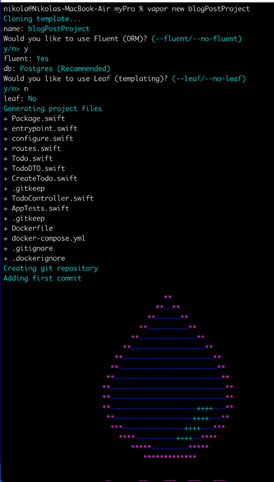
Opening project
To open the project, navigate to the folder where the project is located in therminal (cd pathToDirectory) and type
vapor xcode
Xcode will launch, and on the left side, you’ll see Swift Package Manager (SPM) downloading all the necessary dependencies. This may take a few minutes.
Running
Running the project is the easiest part. Select “MyMac” as scheme and press CMD + R.
You’ll get something like this in your debug console.
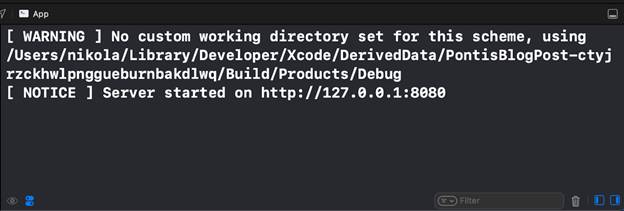
We can see that it started successfully, but the working directory is missing. To stop the running process, we use the stop button, just like with a regular iOS application.
You need to select Edit Scheme, check Use Custom Working Directory, and choose our project folder.
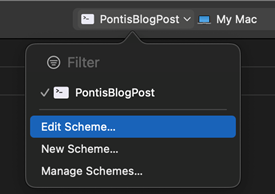
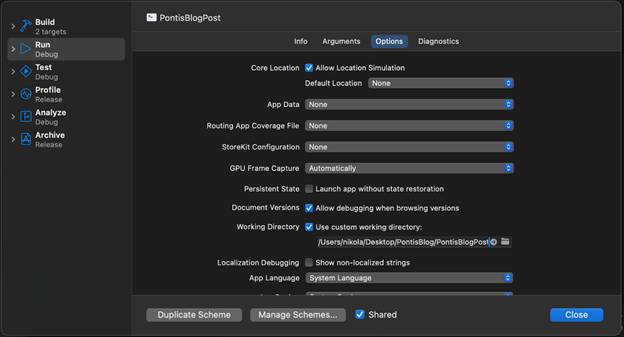
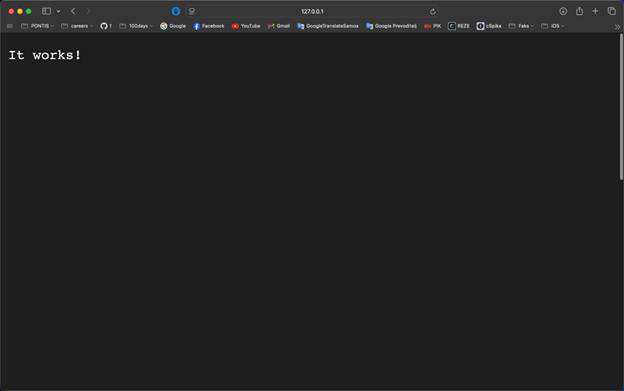
Now, if we run it again, we’ll see that everything works without any errors. We will receive a URL where the server is running, and if we open it in the browser, we should see the message “It Works!” We did it!
From time to time, it can happen that if we’ve already started the server and didn’t stop it completely, restarting may become impossible. In that case, we will see the following error.

This should happen rarely, but if you happen to encounter it during the second attempt to start the server, don’t worry. There’s a solution.

In the terminal, you need to type lsof -i:8080, which will list all processes on port 8080. We will see the PID number of our process, and we can kill it using the command kill -9 PIDnumber.
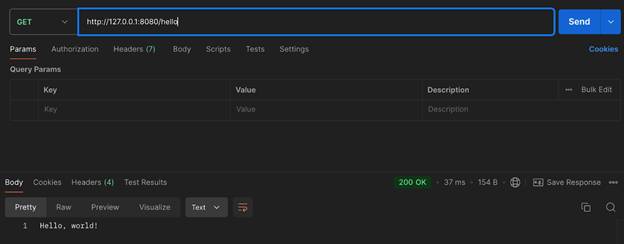
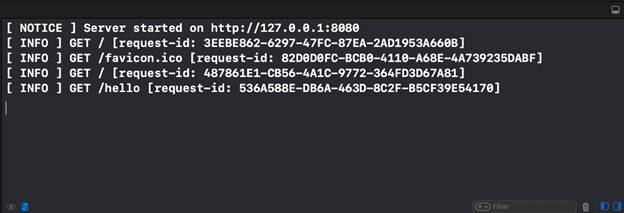
That’s it. The server is running, and by default, we have one route, `/hello`, which returns the good old “Hello, world.” You can test it in Postman, and in the debug console, you’ll see logs for all the calls happening on the server.
Making our first API
By default, we get an example for a ToDo list within the project, as most demo projects often use a ToDo list as an example. Logically, we won’t take their example; instead, we’ll come up with our own in a very creative way. The second most common example, of course, is quotes.
The code is organized into three folders:
- Controllers
- Migrations
- Models
Much of this is based on protocols and once you conform to a specific protocol, you are required to implement certain functions. There are three other important files:
- Configure
- Entrypoint,
- Routes
EntryPoint
The entrypoint is the file that contains the main function, which is executed first. You can take a look at it if you want. Within this file, we won’t be making any changes; it simply calls the configure function within the configure file.
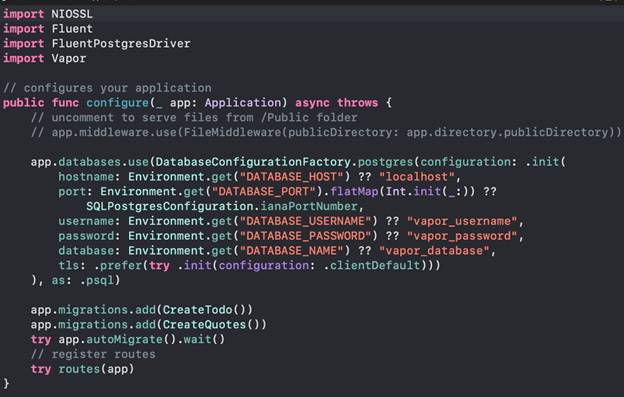
Configure
Here, we’ve added just two lines:
app.migrations.add(CreateQuotes())
and
try app.autoMigrate().wait()
However, if you look at the rest of the function, you will see that this function is very important. It handles the database host, port, name, password and username. During local development, this part is not crucial, and we can even hardcode the values. But when we deploy everything to a real cloud environment, it will be necessary to manage everything properly through the environment.
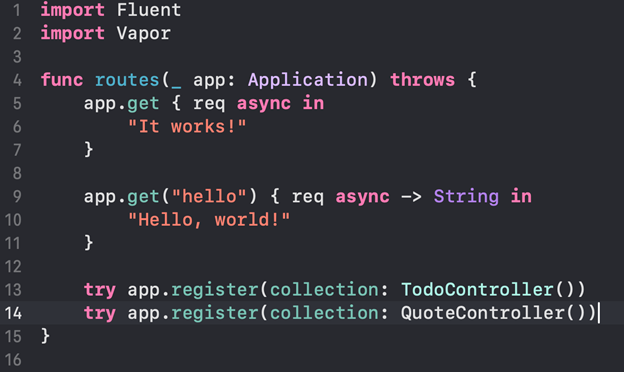
Routes
Routing is the process of finding the appropriate request handler for an incoming request. In fact, all the routing code can be crammed into this file, but it would quickly become very messy, which is why it is separated into controllers. I encourage you to read and learn about routing in the backend in general, as every good developer should be familiar with it.
Migrations
Migrations are like a version control system for your database. Each migration defines a change to the database and how to undo it. By modifying your database through migrations, you create a consistent, testable, and shareable way to evolve your databases over time.
Here, we specify how the table in our database will be created and how it will be reverted. However, to keep it simple for now, we will create only two fields: text and author. In case of a revert, we will delete the entire table. This part is more important when you already have a version in production and want to release a new version. For now, you don’t need to worry too much about this.
Models
Models represent data stored in tables or collections in your database. Models have one or more fields that store codable values. All models have a unique identifier. Property wrappers are used to denote identifiers, fields, and relations.
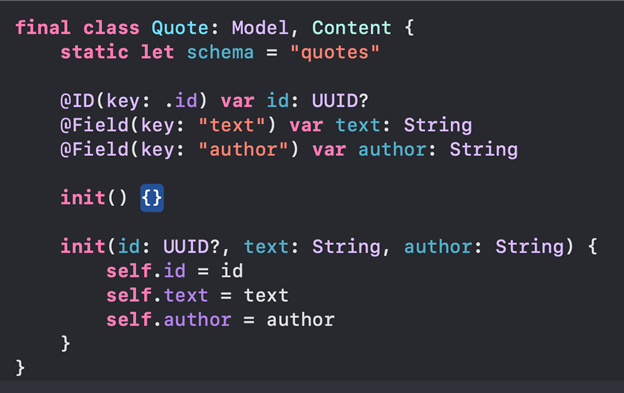
Note that models do not describe the entire database schema, such as constraints, indexes, and foreign keys. Schemas are defined in migrations. Models are focused on representing the data stored in your database schemas. Notice how we use annotations in front of the variable names; this indicates what the field is actually called in the table. However, for consistency, we will always name them the same way.
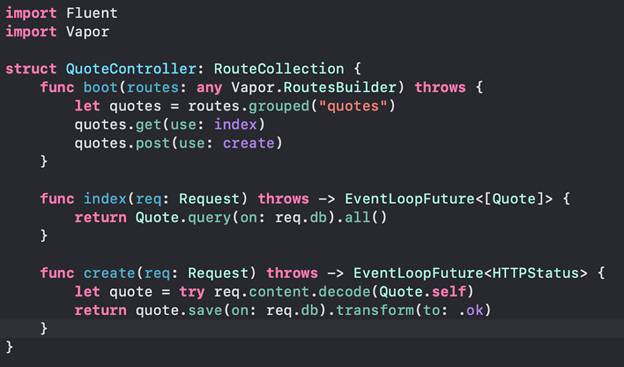
Controllers
Controllers are a great way to organize your code. They are collections of methods that accept a request and return a response. Within the boot function, we define the route. In this case, it will be:
ServerURL/quotes
After that, for each method we want to support, we define which function will be called. In this case, we only have GET and POST. Try implementing DELETE. The official documentation is your friend.
Let’s try the work we’ve done so far.
1. Run project → error
You can try running the project again, but trust me, you will get an error. Earlier, we could run it because we weren’t using a database, but now it will give us the following error.

2. Start Docker with docker-compose up db.
Now Docker comes into play. You need to start it and then run the following line in the terminal from the project folder:
docker-compose up db
You will see many lines in the terminal, but when they stop appearing, check Docker, and you should see something like this where it says “running.”
3. Run again in Xcode
Now, if we run our project again from Xcode, we will see that the server has started successfully.

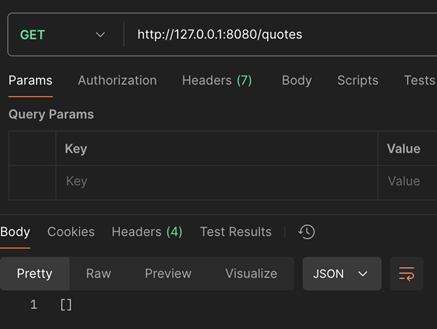
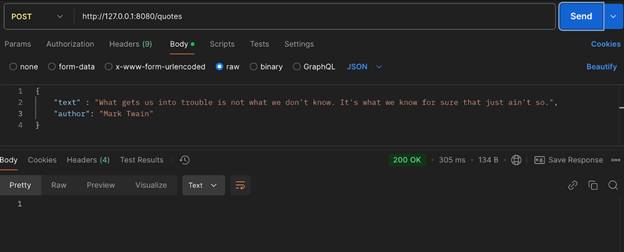
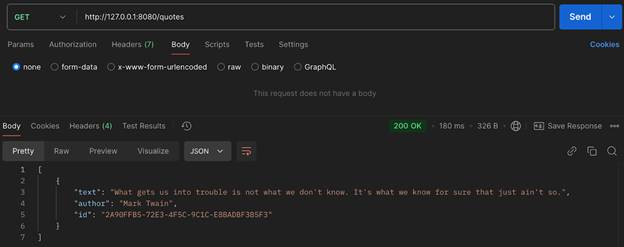
4. Test GET and POST in Postman
Let’s try to call our GET route for quotes in Postman; it should return an empty array. After that, let’s try adding something to the same route using the POST method, and then call GET again.
Direct access to database
Everything is working as expected. However, now everything goes through the API, so we depend on having implemented the APIs correctly. Sometimes, to figure out what exactly is wrong, it’s necessary to look directly into the database. This is where Azure Data Studio comes into play.
Azure Data Studio
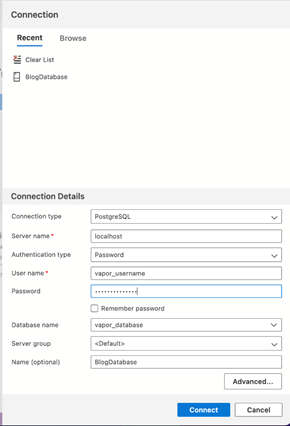
Open Azure Data Studio and click on a new connection. Fill in the details for your server. We already mentioned the configure function, which contains the information for the local server. If you haven’t changed them, they should be the same as in the image below.
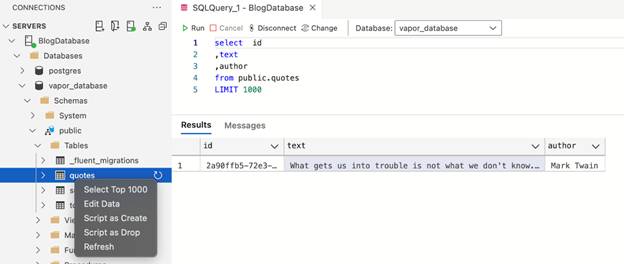
After a successful connection, we can find our tables. By right-clicking on the table, we can easily select Select Top 1000, but we see in the upper right part that it’s just a regular SQL query, which I also encourage you to explore and try writing manually. ChatGPT is your friend. In the lower right part, we can see the results.
iOS application
With just these two APIs, we can actually create a mini iOS application. I’ll leave the design up to you, but here’s a small note for testing. Since it’s a local server, the HTTP transfer method is used, which iOS won’t consider secure enough by default, so your API calls won’t work. You have two options:
- In your Info.plist set NSAllowsArbitraryLoads to true, which will reduce the security level and allow access to the local server. Personally, I use this method during debugging.
- Use ngrok. Explore it if you’re interested. It’s very simple. Its motto is: online in one line. In short, it will give you a temporary HTTPS address that will be valid for 2 hours. Personally, I don’t want to have another dependency and change the address every two hours, but just so you know about this option.
Deploy
Deploy is the process of transferring and configuring an application on a server or cloud environment so that it becomes accessible to users. Once you’re finished (or think you are), it’s time to deploy. On the Vapor website, you have instructions for popular services, and you also have guides on the service providers’ websites. All of them support Docker, which has become the standard these days.
There are some limited options where you could go for free, but honestly, I haven’t bothered much with them. Personally, I used DigitalOcean. The cheapest option costs a few bucks per month and is more than sufficient to get started. Surely your side project is worth that much. 😀
Conclusion
Vapor was an interesting experience. It’s simple and, I would say, an excellent introduction to backend development. It has good documentation, and even ChatGPT can help. There’s also a Discord community where someone is always willing to assist. It’s a great choice for a side project or a simple application.
While it’s not a technology you can easily find a job with, it might inspire a career change or encourage you to learn a new technology. If nothing else, it will give you a bit of insight into backend development and help you better understand your backend colleague at the next meeting. If you’re a bit more of a nerd, you can dive deeper because it’s open-source. I believe you’d learn many concepts that would also be useful for iOS itself.
FAQ
Strictly speaking, no. But, they make your life much easier.
Docker gives you a predictable database environment, Azure Data Studio (or DBeaver) helps you inspect data directly and Postman speeds up testing your routes without touching the iOS app.
Together they mirror how real-world Vapor backends are typically developed and debugged.
PostgreSQL is a full-featured relational database that is widely used in production systems and is very well supported by Vapor and Fluent. Starting with Postgres means your local setup already matches the kind of database you’re likely to see in real deployments and it handles relationships and more complex queries much better than simple file-based databases.
If the database container isn’t running, Vapor won’t be able to connect to PostgreSQL and you’ll see connection errors when the app starts or when you hit routes that touch the database. That’s why your project ran fine before adding migrations and then started failing once the code actually tried to talk to the database.
The easiest way is to use Postman (or curl) to call your routes directly. You can quickly test GET and POST on /quotes, see the JSON response, and check the request logs in Xcode’s debug console. When you’re happy with the responses, then you wire everything into your iOS app.
Vapor is used in real production systems and is officially listed by Swift.org as a recommended server-side framework. That said, your article rightly frames it as a great technology to learn backend concepts, build side projects, and understand what your backend colleagues are dealing with.
Yes, you can install Swift and Vapor directly on a server and run the app as a system service, but Docker has become the standard way to package and deploy applications because it simplifies dependencies and portability. Since most cloud providers support Docker out of the box, learning it now will translate well to other projects too.