
The development of native Android applications has evolved significantly over the years. In the early days, developers primarily used Java with XML layouts to build UIs and manage application logic. While effective, this XML-based approach often resulted in complex and verbose code.
The introduction of Kotlin, a modern and concise language fully supported by Android Studio, made Android development more readable and efficient. Building on this shift, the discussion of Jetpack Compose vs XML became central to modern Android UI development. Jetpack Compose introduced a declarative UI toolkit that allows developers to define interfaces directly in Kotlin, removing the need for separate XML layout files. This change streamlines UI design, simplifies state management, and improves testability, enabling faster development cycles and more dynamic, responsive user experiences.
What is Jetpack Compose?
According to official Android documentation, Jetpack Compose is a contemporary UI toolkit for Android that follows a declarative approach. It simplifies the process of creating and maintaining app user interfaces by providing an API where you describe the UI rather than manually updating individual views.
With Compose, the UI is built by creating composable functions that receive data and generate UI elements in response, making the development process more straightforward and efficient.
Implementing UI with Jetpack Compose and XML: A Comparative Approach
In this blog, we will showcase one of the screens from our Android application A-track, implemented using both XML and Jetpack Compose. A-track is a digital notebook application for efficient attendance tracking. We will explain how to design the user interface using traditional XML-based methods and then compare this approach with the newer Jetpack Compose methods. For this post we will show the creation of the Teams screen.
A small note for this post: for simplicity, certain values (such as dimensions, strings and colors) will not be extracted into separate files, allowing readers to more easily follow along with the code.
Teams Screen
Every screen in the application is carefully designed by the designer, ensuring that developers can focus on coding without getting involved in the design process. The purpose of this post is to implement the screen shown in the image below using both Compose and XML. The screen displays a title at the top, a list of items, and a basic button. Items in the list have their own design.
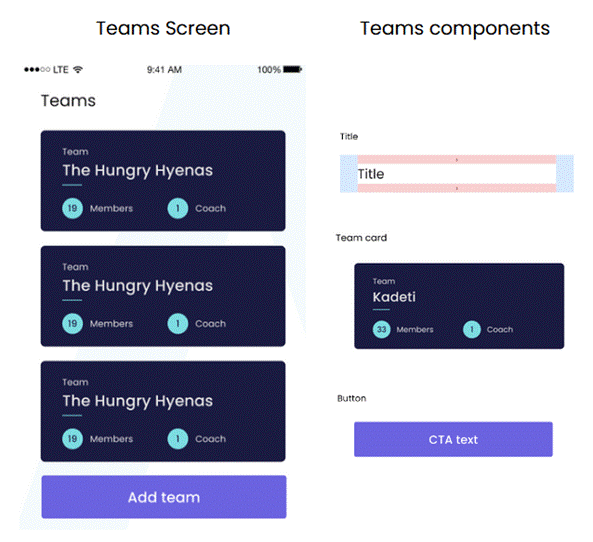
Img. 1 – Showing Teams screen with different components
Implementing the Teams Screen in XML
For the XML method, we need to create an XML layout file along with a corresponding Fragment (a part of an Activity). Additionally, whenever a list is displayed in XML, we have to set up a RecyclerView with its adapter to handle the list. For this screen, that means implementing two XML files: one for the Teams screen layout, which includes the screen title, the list of teams and a simple button at the bottom. The second XML file will define the layout for each item in the list. We also need to structure these elements using various layout types, such as LinearLayout, FrameLayout and ConstraintLayout to properly arrange the components on the screen. Thus, the first XML file for the Teams screen is represented as shown in Image 2.
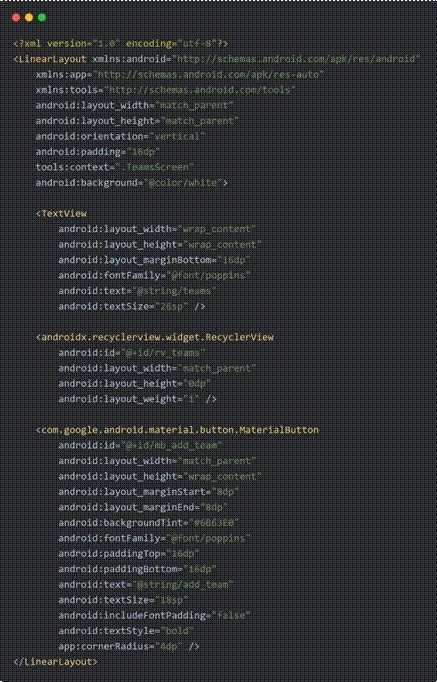
Img. 2 – TeamsScreen XML layout
This layout features a LinearLayout that includes a TextView for the screen title, a RecyclerView that will be populated with data from a second XML file, and a MaterialButton. Each component comes with its own set of properties that can be adjusted. For the MaterialButton, we can customize aspects like fontFamily, textSize, backgroundTint, cornerRadius and more. Detailed information on these properties can be found in the official documentation.
Image 3 showcases the preview of the TeamsScreen XML layout within the XML design tab.
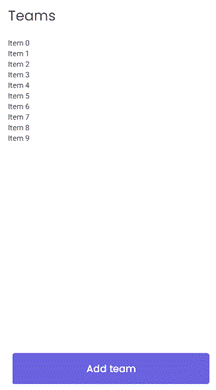
Img. 3 – TeamsScreen design in XML
The second XML file for the Teams items is illustrated in the image 4 below. It features a FrameLayout as the parent layout, containing a MaterialCardView with a corner radius of 16dp and a dark blue background color for the team item. Additionally, this layout includes multiple TextViews that serve as placeholders for information such as team members, coaches, and their respective counts.
A MaterialDivider, represented as a thin blue line, visually separates the “Teams” placeholder from the actual team name. Due to the length of the code, certain parts of the TextViews were hidden in the screenshots, however these elements are configured with properties such as text size, font color, and constraints.
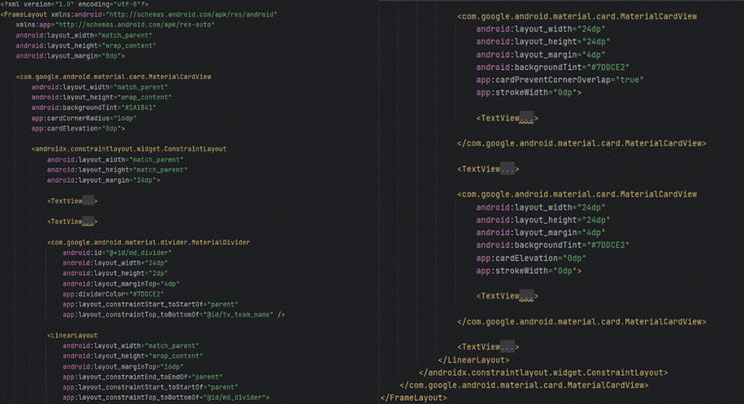
Img. 4 – team_item layout in XML
Image 5 displays the team_item design as implemented in the XML code above.
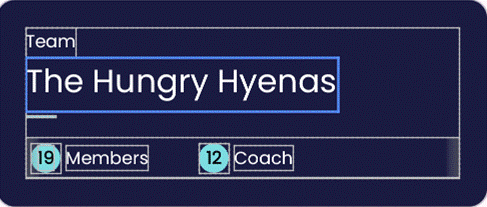
Img. 5 – team_item design in XML
After implementing these two layouts, the next step is to establish the logic within an activity or, in our case, a fragment that utilizes an adapter. In the image below (img. 6), we establish a connection between the TeamsScreen Fragment and its binding associated with the first XML file. Once the binding is retrieved, we configure the properties of the RecyclerView (binding.rvTeams) and bind it to its adapter. We also pass a hardcoded list of teams to the Adapter, using our custom Team data type, which includes fields such as teamName, membersNumber, and coachNumber. Additionally, we set up a listener for the button (binding.mbAddTeam).
After configuring the Fragment, the next step is to create an Adapter for displaying the teams list (img. 7). Within the Adapter, we iterate through each item in the submitted list and assign the corresponding values to the TextViews. For instance, we set binding.tvTeamName.text to team.teamName. For the XML implementation, we created two layout files along with a Fragment and an Adapter. As shown abovee, these XML files can become quite lengthy and complex, which may hinder readability.
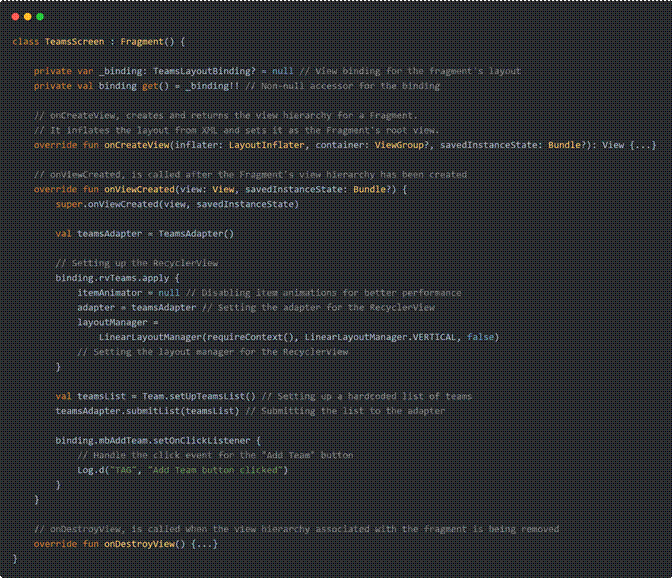
Img. 6 – TeamsScreen Fragment
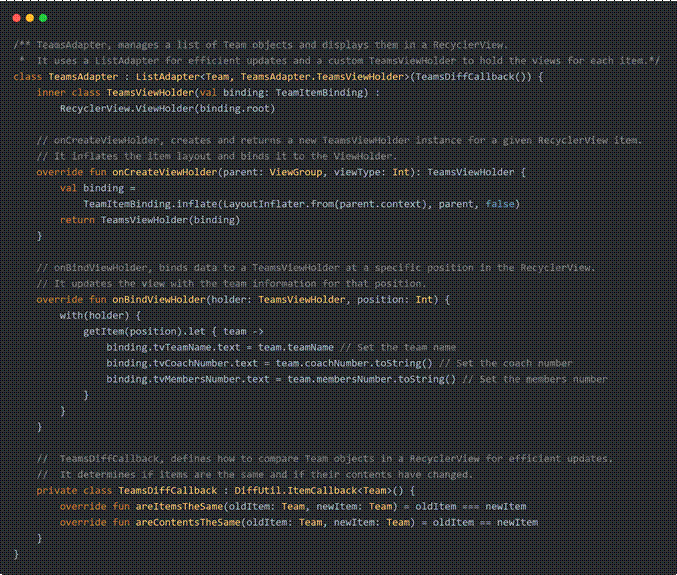
Img. 7 – TeamsAdapter
Jetpack Compose is reshaping Android UI, but XML layouts are still everywhere. In this comparative guide, we implement the same Teams screen with both XML and Jetpack Compose, walk through layouts and code structure, and highlight when each approach makes more sense in real-world apps.
Implementing the Teams Screen in Jetpack Compose
In the Compose approach, we typically begin with a single activity, where we define a composable method. This MainActivity, as shown in image 8, serves as the entry point of the application. For larger projects, we can establish an entire navigation graph, but for this example, the MainActivity will host the TeamsScreen() composable function, which displays a title, a list of teams, and a button.
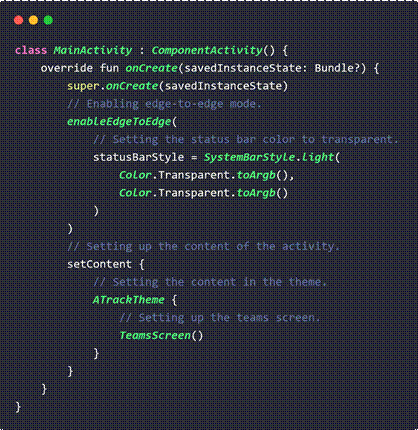
Img. 8 – MainActivity of Compose project
When defining composable functions, we can organize them into separate Kotlin files for clarity and maintainability. For instance, we can create a dedicated file for custom buttons, consolidating all button-related logic in one place. Following this approach, the TeamsScreen() composable is contained within its own Kotlin file.
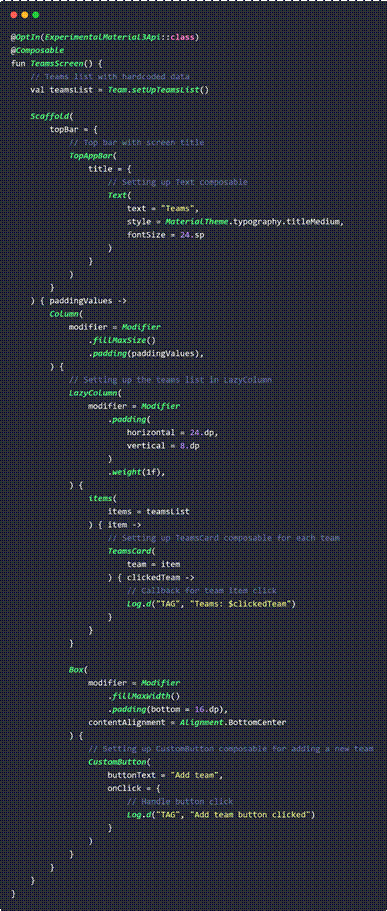
The TeamsScreen composable, displayed in image 9 , combines UI implementation and logic in a single file. Every composable function must be annotated with @Composable, and these functions can accept parameters that allow the app’s logic to dynamically define the UI.
Img. 9 – TeamsScreen composable
This screen utilizes several composable functions, including Scaffold, TopAppBar, Box, Column, LazyColumn, TeamsCard, and CustomButton. The last two are custom composable functions that will be explained in detail later. Each of these functions has its own properties, including the Modifier, which enables manipulation of component attributes such as width, height, padding, and click listeners. When new data is passed to a composable function, Jetpack Compose handles the UI updates through a process called recomposition.
In this example, the Scaffold composable represents the screen structure and displays the title using TopAppBar, where the “Teams” title is set along with custom font size and family. The Column composable, similar to a LinearLayout with vertical orientation in XML, contains a LazyColumn and a Box. The LazyColumn is responsible for displaying the list of teams within the TeamsCard layout, and it also provides a callback for handling item clicks. The Box contains the CustomButton, which is positioned at the bottom center and includes a click callback for user interactions.
The LazyColumn is a vertically scrolling list that optimizes performance by only composing and laying out the currently visible items. It offers various properties such as verticalArrangement, reverseLayout, and horizontalAlignment, allowing for precise control over the layout and alignment of list items. In this implementation, we use the items function to populate the list, which iterates through each element and applies the custom TeamsCard layout to every item.
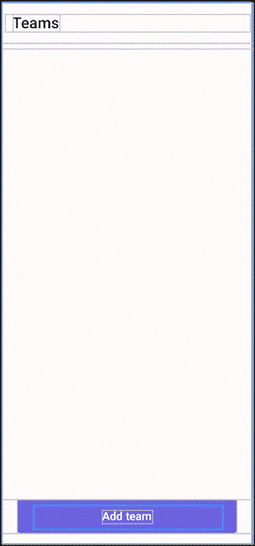
Image 10 presents a preview of the TeamsScreen with an empty teams list. In this preview, we see a simple Scaffold structure featuring a TopAppBar, an empty LazyColumn that fills the available space using Modifier.fillMaxSize(), and a CustomButton positioned at the bottom of the screen.
Img. 10 – TeamsScreen composable preview
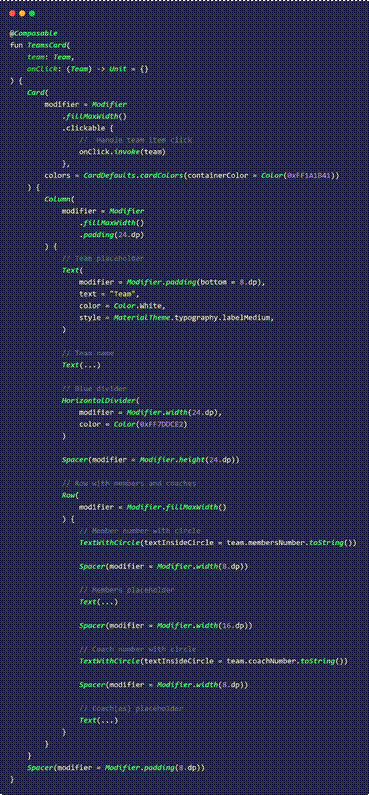
The TeamsCard composable, as shown in image 11, is used to display the details of each team in the list.
Img. 11 – TeamCard composable
The TeamsCard composable consists of a Card component, which encapsulates a Column layout containing multiple Text composables, a horizontal divider (styled as a blue line), and a Spacer to create space between elements.In the final Text composable, we demonstrate the ability to incorporate an if condition directly within the text property. This allows for dynamic text rendering based on certain conditions, making the UI adaptable to different states or data inputs.. Additionally, it includes a custom TextWithCircle composable to further enhance the layout’s design and structure.
Image 12 presents a preview of the TeamsCard composable.
Img. 12 – TeamsCard composable preview
The custom TextWithCircle composable, shown in image 13, is a versatile component that can be reused throughout the project. It allows the developer to simply pass the desired text to be displayed inside the circle. Additionally, it can be extended by defining more parameters, such as the circle’s color, which can be customized and passed into the composable, enhancing its flexibility and reusability across the app.
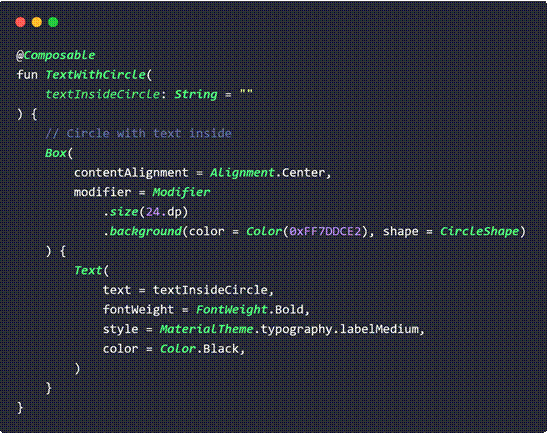
Img. 13 – TextWithCircle composable function
Image 14 displays the TextWithCircle composable, featuring the text “5” inside the circle.
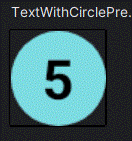
Img. 14 – TextWithCircle composable preview
The final component in the TeamsScreen is the CustomButton, which has been extracted into a separate file named Buttons. It contains all of the app’s button components (such as outlined buttons, various sizes, etc.).
Image 15 shows the implementation of this custom button, which is built on the standard Button composable and includes text. It features several customizable properties, such as shape, containerColor, contentColor, and disabledContainerColor, as well as options to enable or disable the button, an onClick listener, and more. Additionally, when assigning a color, we can utilize the copy method to adjust properties such as the alpha value and other color attributes, allowing for more granular control over the appearance of the UI elements. Detailed documentation for the properties of each composable function can be found in the official Android documentation.
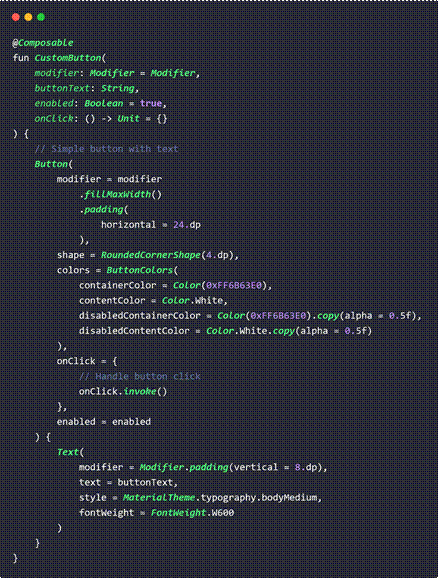
Img. 15 CustomButton composable
Image 16 displays the CustomButtonComposable in preview mode with buttonText “Test”.
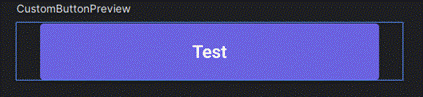
Img. 16 CustomButton composable
In summary, we have developed distinct composables that can be utilized in various screens of the application by passing different arguments to tailor them for specific purposes. This Compose approach eliminates the need for Fragments and Adapters, streamlining the architecture. By treating UI elements as building blocks, we achieve a more dynamic and flexible interface, allowing for seamless integration and adaptability across the application.
Results
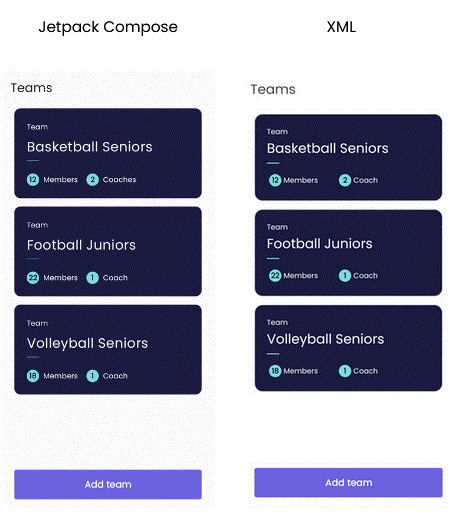
In image 17, we show the final results of the Teams screen created in both Jetpack Compose and XML. While the two implementations use different methods, the screens look very similar, highlighting the ability of both approaches to achieve a consistent user experience.
Img. 17 – Teams screen in Jetpack Compose and XML
Conclusion
The blog post discusses the transition from traditional XML layouts to Jetpack Compose, emphasizing the advantages of a more declarative and flexible UI approach. It explains the basic structure of an Android application using Compose, focusing on a single activity as the entry point, which allows for easier navigation and UI management.
The use of composable functions is highlighted, noting that they must be annotated with @Composable and can accept parameters to dynamically define the UI. The post emphasizes creating separate composables, such as TeamsCard and CustomButton, which can be reused across different screens, enhancing maintainability and organization.
Additionally, key composables like LazyColumn, Column, and Scaffold are introduced to demonstrate how to build flexible and responsive layouts that can react to data changes. The blog also discusses the use of Modifier for manipulating component properties, such as size, padding, and click listeners, along with the ability to customize color properties using the copy method.
In conclusion, the Compose approach simplifies UI development by integrating logic and design without the need for Fragments and Adapters, promoting a more dynamic and cohesive user interface.
FAQ
Not yet, but it’s the future. Google officially recommends Compose for new projects and it’s now stable and production-ready. However, XML is still widely used and many existing apps are built entirely with XML. You’ll likely work with both for years to come, especially when maintaining legacy codebases.
No. Compose eliminates the need for Fragments, XML layouts and RecyclerView adapters. You define your UI with composable functions, and state changes trigger automatic recomposition. This simplifies architecture and reduces boilerplate code significantly.
Yes. Android supports gradual migration. you can embed Compose inside XML layouts using ComposeView, or embed XML views inside Compose using AndroidView. This allows you to adopt Compose screen-by-screen without rewriting the entire app at once.
XML has more learning resources and tutorials because it’s been around longer but Compose is easier to learn if you’re comfortable with Kotlin. Compose’s declarative syntax is more intuitive once you grasp the basics and it reduces the amount of code you need to write compared to XML + Fragments + Adapters.
Compose can improve UI performance by only recomposing parts of the screen that changed, similar to how LazyColumn only renders visible items. However, performance depends on how you structure your composables. Poorly written Compose code can be slower than well-optimized XML.
If you already know Kotlin, the transition is smoother. You’ll need to shift from an imperative mindset (manually updating views) to a declarative one (describing what the UI should look like based on state). Key concepts like state management, recomposition and the Modifier system take practice, but most developers report being productive within a few weeks.
Now that you’ve read this, are you ready for more? Learn How to build a backend with Swift and Vapor